Multi-Screens
If you have a large number of players and want to spread the display across multiple Screens, you could manually create several Screens and assign a subset of boards to each one. However, that approach can be tedious and error-prone.
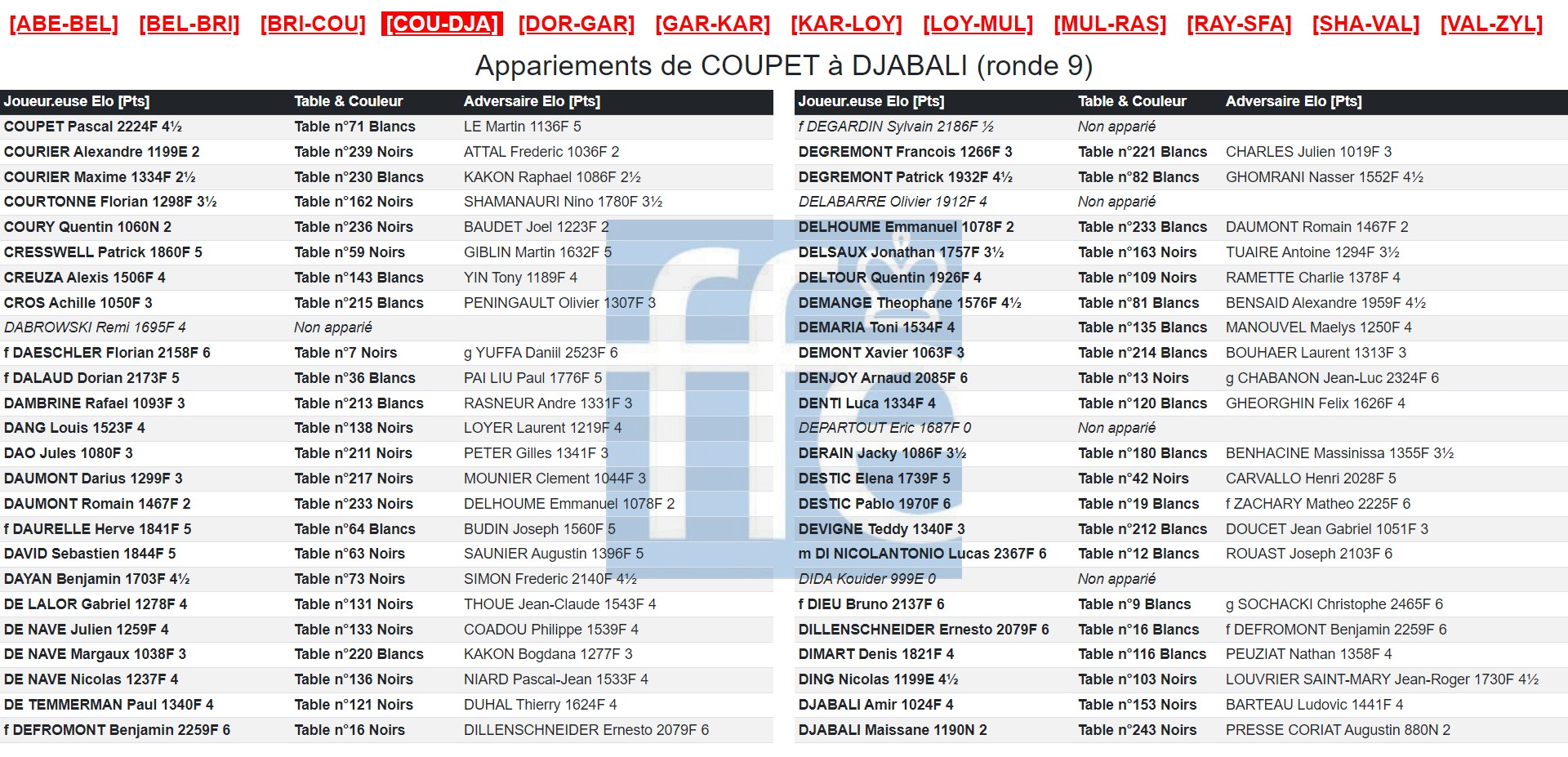
Multi-Screens allow you to automate this process by automatically generating single Screens for you.
Creating a Multi-Screen
To create a Multi-Screen, go to the Screens → Multi-Screens menu and click the Create a Multi-Screen button.
The following screen types are available for use in a Multi-Screen:
Results Entry – Allows players to check in and enter their results from a shared device.
Pairings by Board – Displays pairings ordered by board number.
Pairings by Player – Displays pairings ordered alphabetically.
Rankings – Displays the current tournament standings.
When creating a Multi-Screen, you’ll see the same options available when creating a standard Screen, but with an additional configuration:
You can choose either:
- The number of Screens to split the boards across, or
- The number of boards per Screen (in which case Sharly Chess will automatically calculate how many Screens are needed)
It’s not possible to add more than one tournament to a Multi-Screen.
Accessing the Screens of a Multi-Screen
A Multi-Screen generates several single Screens. To let viewers move between them, add the Multi-Screen to a Menu: it appears as a single navigation entry that opens a submenu listing each generated Screen.
On the Single Screens page, enable the Multi-Screens toggle to view all Screens that have been auto-generated as part of a Multi-Screen.